

A mail merge template helps you create multiple personalized documents using one standard document and a list of recipient information. Instead of manually creating every letter, label, envelope, or other document, mail merge combines a template with a data source such as an Excel spreadsheet.
Microsoft Word’s mail merge feature is commonly used for business letters, address labels, envelopes, invitations, certificates, notices, and other documents that need to be personalized for many recipients. A well-prepared mail merge template can save time and reduce repetitive data entry.
TemplatesDoc provides free mail merge templates and examples that can be used as starting points for creating personalized documents. The current page specifically identifies Word compatibility and includes downloadable mail merge formats and additional examples.
What Is Mail Merge?
Mail merge is a process that combines a main document with a data source containing information about multiple recipients.
For example, your main document might contain:
Dear «First Name»,
Thank you for your continued support of our company.
The recipient list could contain:
| First Name | Last Name | Address | City |
|---|---|---|---|
| John | Smith | 123 Main Street | Lahore |
| Sarah | Khan | 45 Garden Road | Karachi |
Mail merge uses the corresponding fields to create an individual document for each recipient.
Free Mail Merge Template
A free mail merge template gives you a ready-made document structure that can be connected to a recipient list. You can customize the text, headings, branding, and merge fields before running the mail merge.
Mail merge templates are useful for:
- Business letters
- Address labels
- Envelopes
- Invitations
- Certificates
- Customer notices
- Employee letters
- Event correspondence
- Marketing mailings
Mail Merge Template in Word
A mail merge Word template is particularly useful because Microsoft Word includes built-in mail merge tools. You can create a main document and connect it to an Excel spreadsheet or another supported data source.
Common merge fields include:
- First Name
- Last Name
- Company
- Address
- City
- Postal Code
- Customer Number
After connecting the fields, Word can generate personalized versions of the document.
Mail Merge with Excel
Excel and Word mail merge are often used together. Excel can serve as the data source while Word provides the document layout.
Before starting, organize your spreadsheet with clear column headings and one recipient per row. Avoid unnecessary blank rows and make sure names, addresses, and other information are consistent.
For example, an Excel mailing list might contain columns for first name, last name, company, address, city, and postal code.
Mail Merge for Address Labels
A mail merge label template can create multiple address labels from a single mailing list. This is useful for businesses, schools, organizations, invitations, newsletters, and other bulk mailings.
The label dimensions must match the label sheets being used. Always test the alignment before printing an entire batch.
Mail Merge for Business Letters
Businesses can use mail merge to prepare personalized letters for multiple customers, employees, suppliers, or other recipients.
Instead of manually changing each person’s name and address, the information can be pulled from the data source automatically during the merge process.
How to Use a Mail Merge Template
- Prepare your data source. Create an Excel spreadsheet containing recipient information.
- Open the mail merge template. Use Microsoft Word or another compatible application.
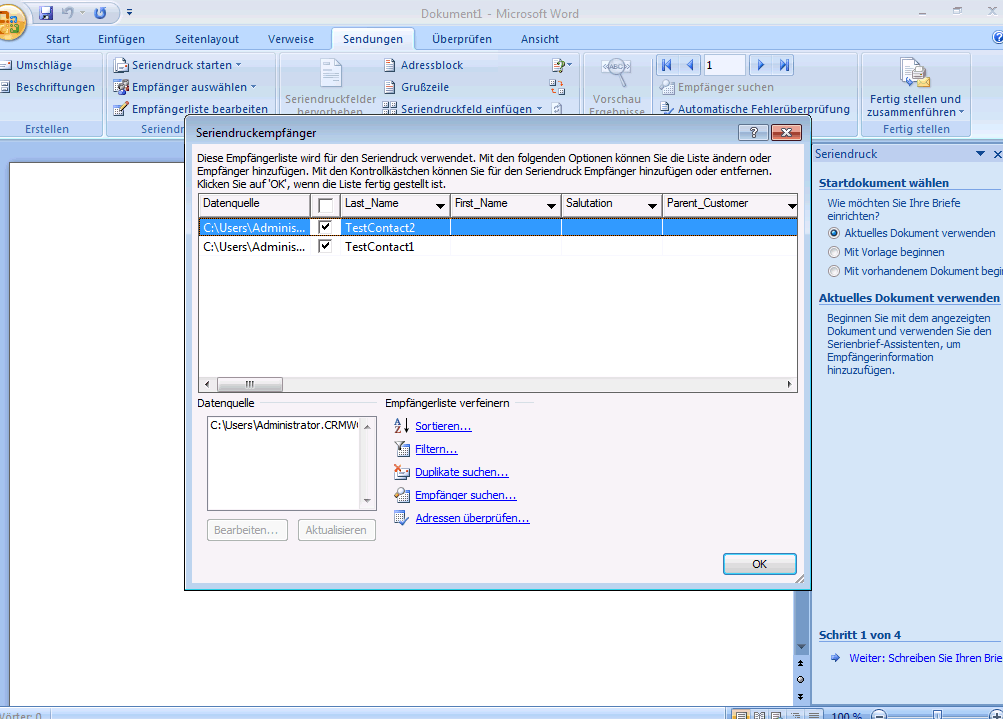
- Connect the data source. Select the spreadsheet containing your recipient list.
- Insert merge fields. Add fields such as name, address, company, or customer number.
- Preview the results. Check several records to make sure the information appears correctly.
- Complete the merge. Generate the personalized documents.
- Review before printing or sending. Check names, addresses, formatting, and other important information.
Benefits of Using Mail Merge
Mail merge can significantly reduce repetitive work when the same document needs to be personalized for many people. It also helps maintain consistent formatting because all recipients use the same basic document design.
Another advantage is that the recipient information can be maintained separately from the document itself. Updating the mailing list doesn’t require manually rewriting the main letter.
Download Free Mail Merge Templates
Whether you need a mail merge template, mail merge Word template, Excel mail merge template, address label template, business letter mail merge, or printable mail merge format, a ready-made template can give you a useful starting point.
Choose a template, prepare your recipient list, connect the data source, insert the required merge fields, and preview the results before completing the merge.
A properly organized mail merge workflow can make bulk document creation much faster while reducing repetitive typing and helping maintain consistent formatting across all personalized documents.
Downloadable Mail Merge Templates And Formats
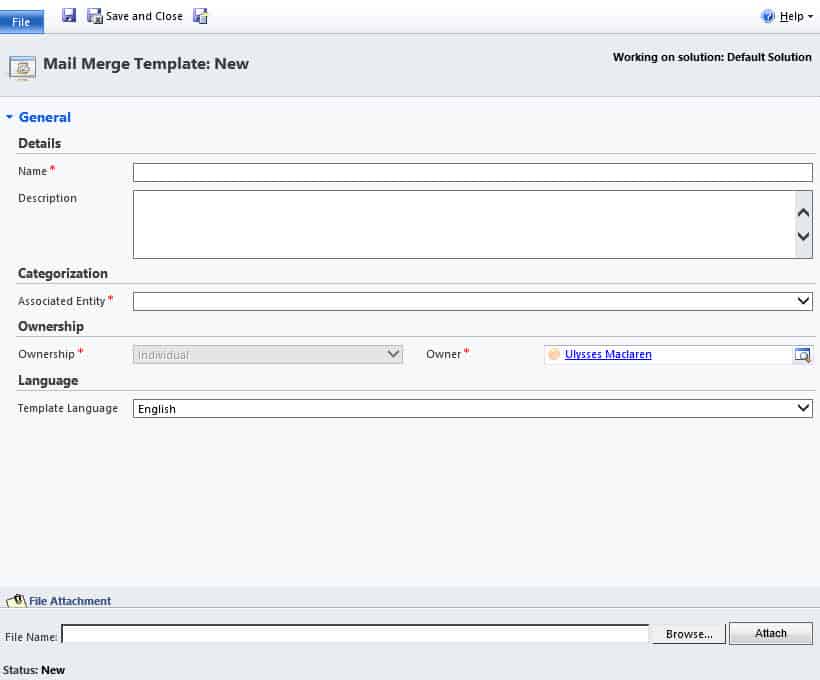
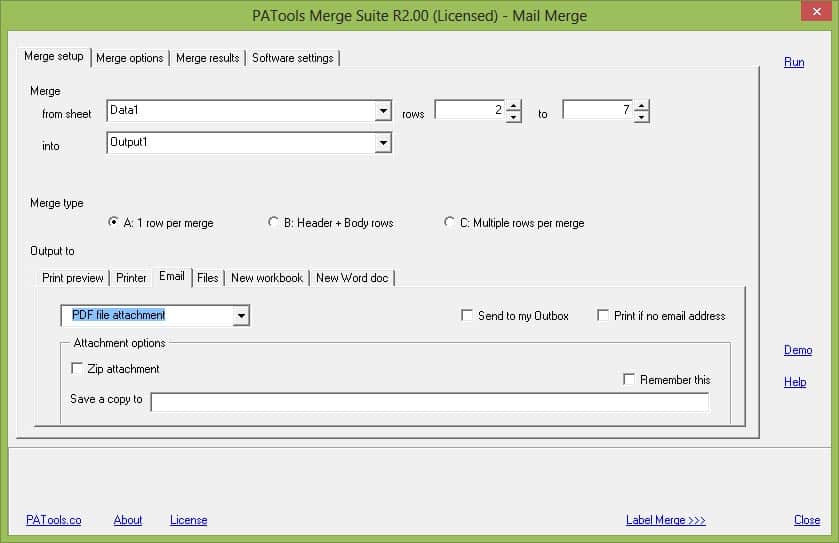
1. Mail Merge Template
This mail merge template provides a reusable document format for creating personalized copies for multiple recipients. It can be connected to a spreadsheet containing names, addresses, company information, or other merge fields.
It can be useful for businesses, schools, organizations, and individuals preparing bulk correspondence.

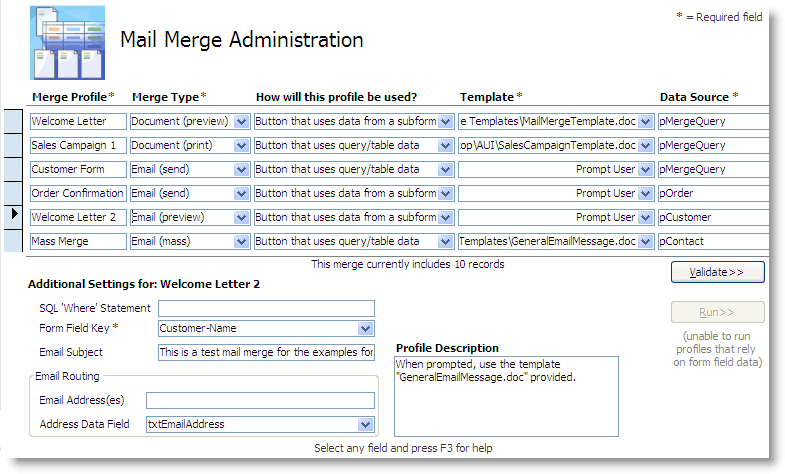
2. Mail Merge Word Template
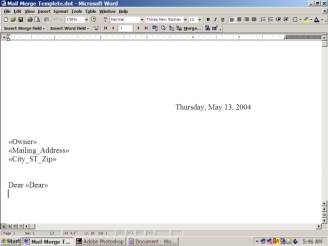
This editable mail merge Word template can be customized with document content and merge fields before being connected to a recipient list.
It provides a practical starting point for creating personalized letters and other business documents in Microsoft Word.

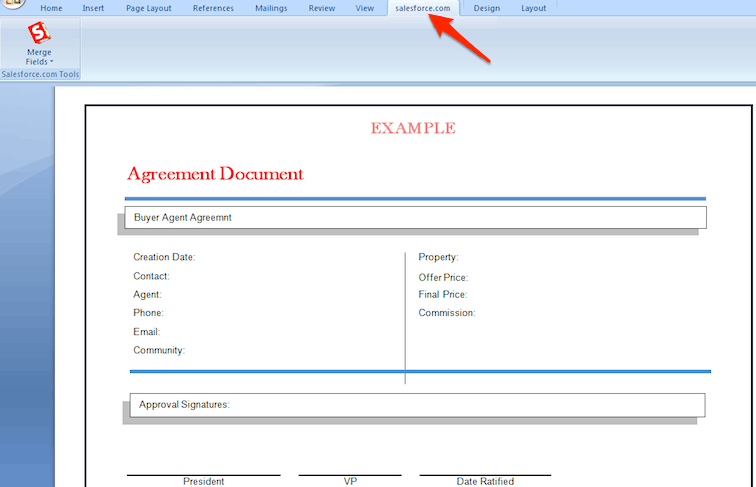
3. Mail Merge Template Example
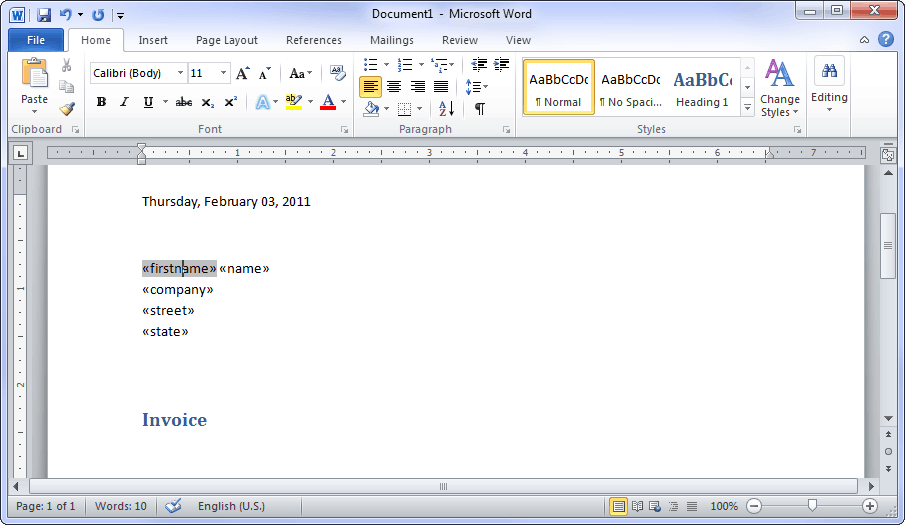
This mail merge example demonstrates a possible structure for combining a standard document with recipient information.
It can be used as a reference when setting up a personalized document workflow.
4. Mail Merge Format
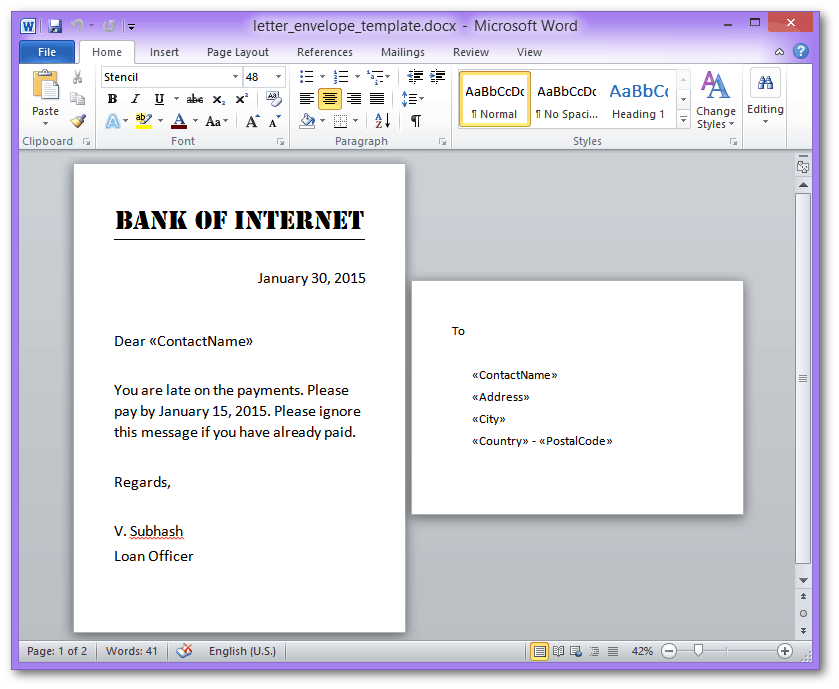
This mail merge format provides a structured starting point for organizing a main document and its corresponding recipient information.
It can be adapted for different types of bulk correspondence.
5. Mail Merge Sample
This mail merge sample provides an example of a reusable document format that can be connected to a mailing list.
It can help users understand how personalized information can be incorporated into a standard document.
Frequently Asked Questions
1. What is a mail merge template?
A mail merge template is a document connected to a data source that allows you to create multiple personalized copies using information such as names, addresses, or customer details.
2. Can I use Excel for mail merge?
Yes. Microsoft Excel can be used as a data source for Word mail merge. Each column can contain a different type of information, such as names, addresses, companies, or postal codes.
3. How do I create a mail merge in Word?
Create or open your Word document, select the Mail Merge feature, connect your recipient list, insert the required merge fields, preview the results, and then complete the merge.
4. What can I create with mail merge?
Mail merge can be used for personalized letters, address labels, envelopes, invitations, certificates, notices, customer communications, and many other documents.
5. What is a mail merge field?
A mail merge field is a placeholder in the main document that corresponds to a column in the data source. Examples include «First Name», «Address», and «Company».
6. Can I use a mail merge template for address labels?
Yes. Mail merge is commonly used to generate multiple address labels from an Excel spreadsheet or another recipient database.
7. Why is Excel useful for mail merge?
Excel provides a convenient way to organize recipient information in rows and columns. Word can then use that information to personalize the main document.
8. Should I preview a mail merge before printing?
Yes. Always preview and check several merged records before printing or sending the final documents. This helps identify incorrect fields, formatting problems, missing information, or address errors.



You must be logged in to post a comment.